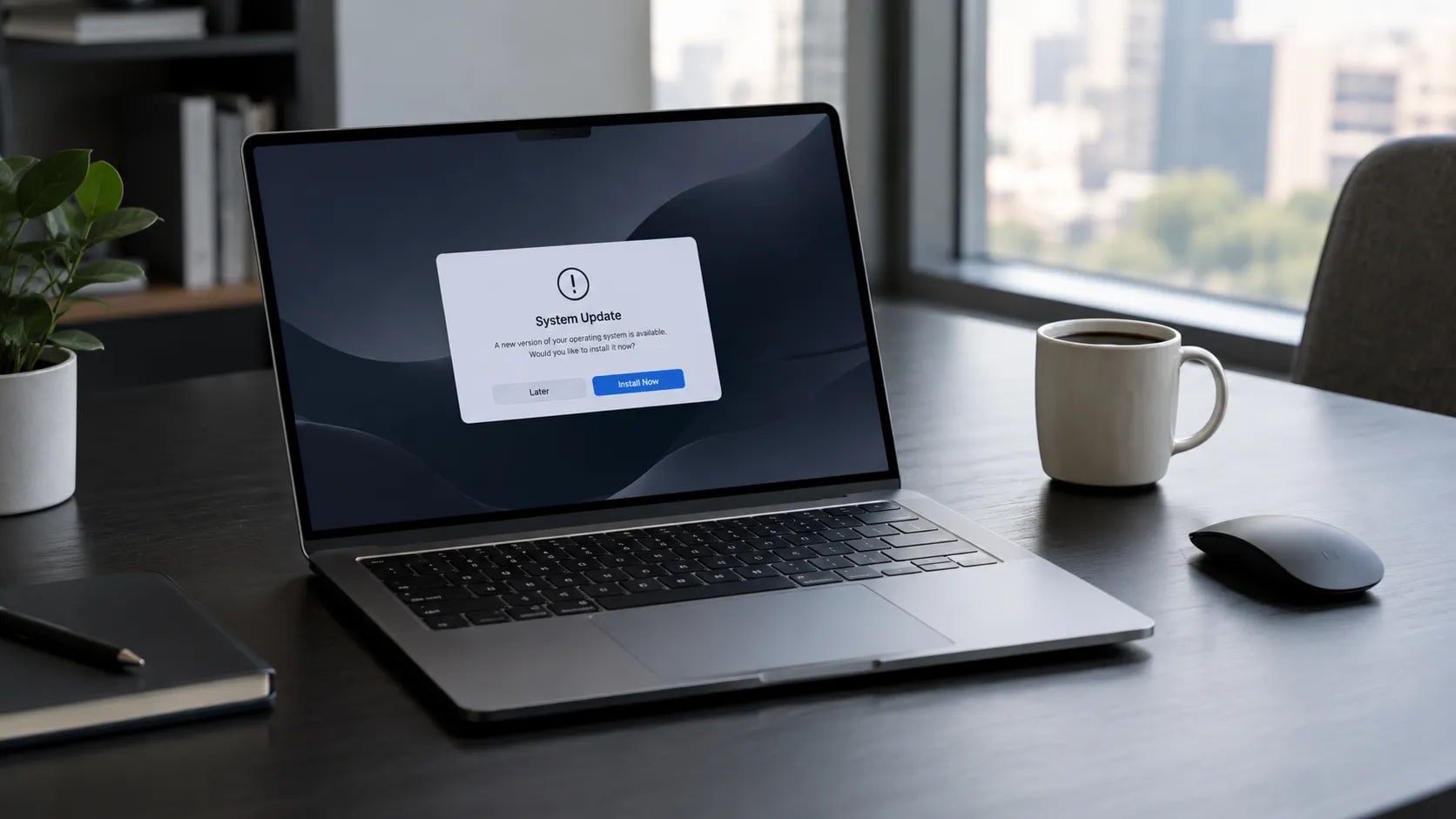
Fix Windows 11 Update KB5129195 Failed to Install
Windows 11 updates are getting more annoying by the day. That new KB5129195 update just refuses to install on most PCs. You get an error code. It gets stuck. Super frustrating.
Here is how to fix this mess.
Run Command Prompt Scans
Open CMD as admin. Run system scans right away.
Type sfc /scannow in the box. Let it finish completely.
Then run DISM commands in the exact same window. DISM helps fix broken image files.
Restart your PC after the scan finish. Sometimes a fresh reboot is all you need.
Restart Your Windows Services
If scans fail, check your system services. Press Start and search for Services.
Find Windows Update in the list. Double click it. Set startup type to Automatic. Click Start if it is stopped.
Do the same for Background Intelligent Transfer Service. Also check App Readiness service.
Right click each service. Hit Restart.
You can also pause updates in settings. Pause for a week. Then hit resume updaet-- wait, update.
Clear Update Cache
Sometimes old cache files cause errors.
Stop the update service first.
Open File Explorer. Go to C drive. Find the Windows folder.
Look for SoftwareDistribution. Delete everything inside that folder.
Start the update service again. Try updating now.
Download Manual Package
Windows Update tool breaks often. Grab the file manually instead.
Head to Microsoft Update Catalog online. Search KB5129195 on their site.
Check your windos build first. Match your system version with the right x64 package.
Download the standalone installer. Double click it. Follow simple instructions on screen.
Repair System Files
Still stuck? Do not panic.
Open Windows Settings. Go to System then Recovery.
Look for Fix Problems using Windows Update. Click reinstall now.
It keeps your files. It keeps your apps too.
If that fails, download Media Creation Tool. Save the ISO file on your desktop.
Open ISO. Click setup. Choose keep personal files. Run the setup process. This forces the update through.